
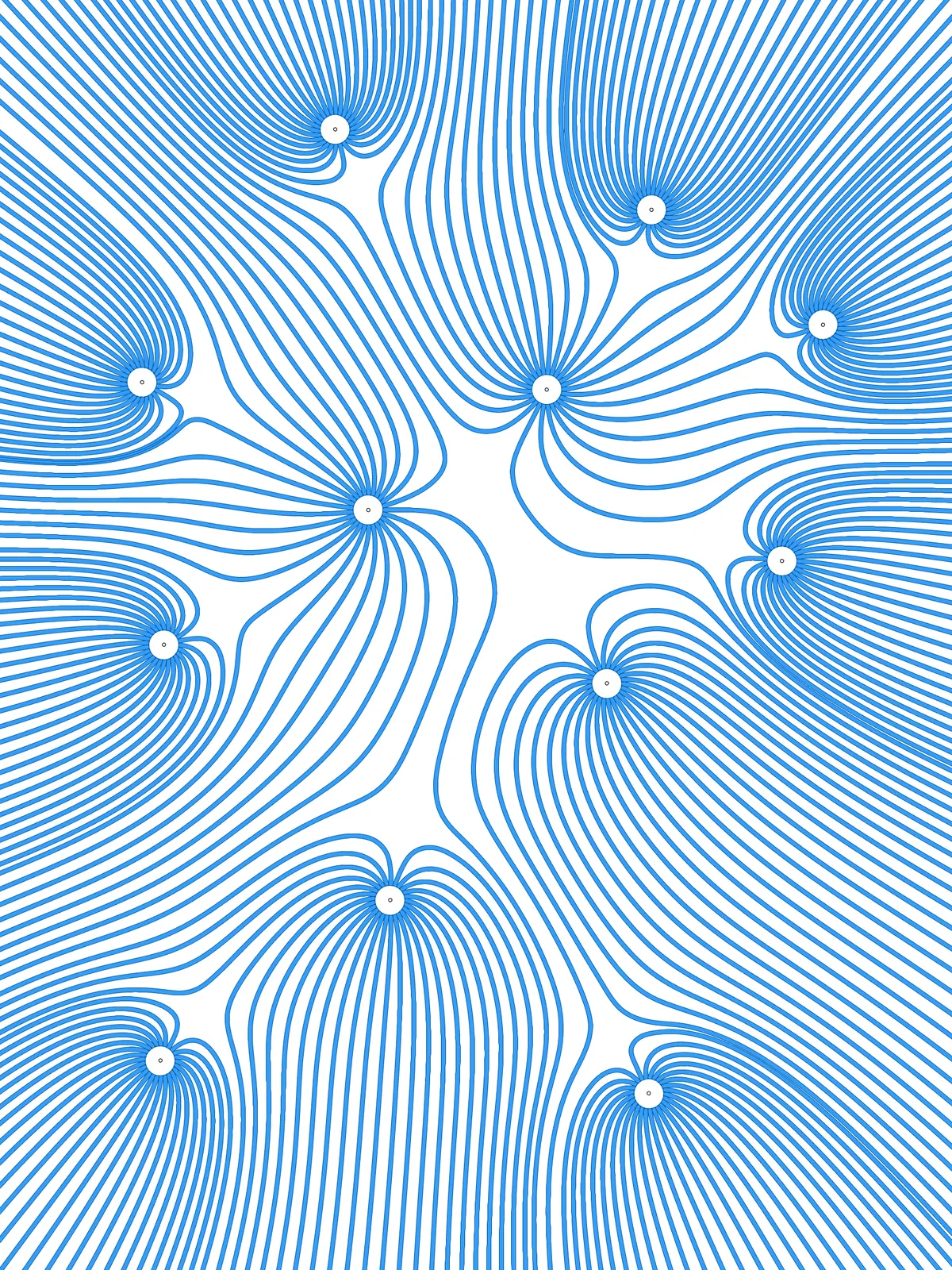
Inputs
Reference in Rhino
Surface
The surface the field lines are drawn on. It also sets the boundary of the field. It must be a planar (flat) surface.
Point
The point charges. Each point sends out its own set of field lines. Place them on the surface.
Main Sliders
Also try: connect a Panel to the Charge (C) input of Point Charge that lists one value per point, and make some of them negative. Positive and negative points attract each other, so the lines run from one point into another instead of only pushing apart.
Notes
- All points have the same charge. The lines spread out from every point and bend away from the neighbouring points, like magnets with the same pole facing each other.
- Watch the crowding at each point. The lines start on a small circle, so with many lines, a small start radius and thick strips, they merge into a solid ring around the point. Raise Start radius or lower Curve thickness if you need them separate.
- Draw the surface in the Top view. The strips are made with
Offset Curveusing its default plane, which is the world XY plane.
Design Logic
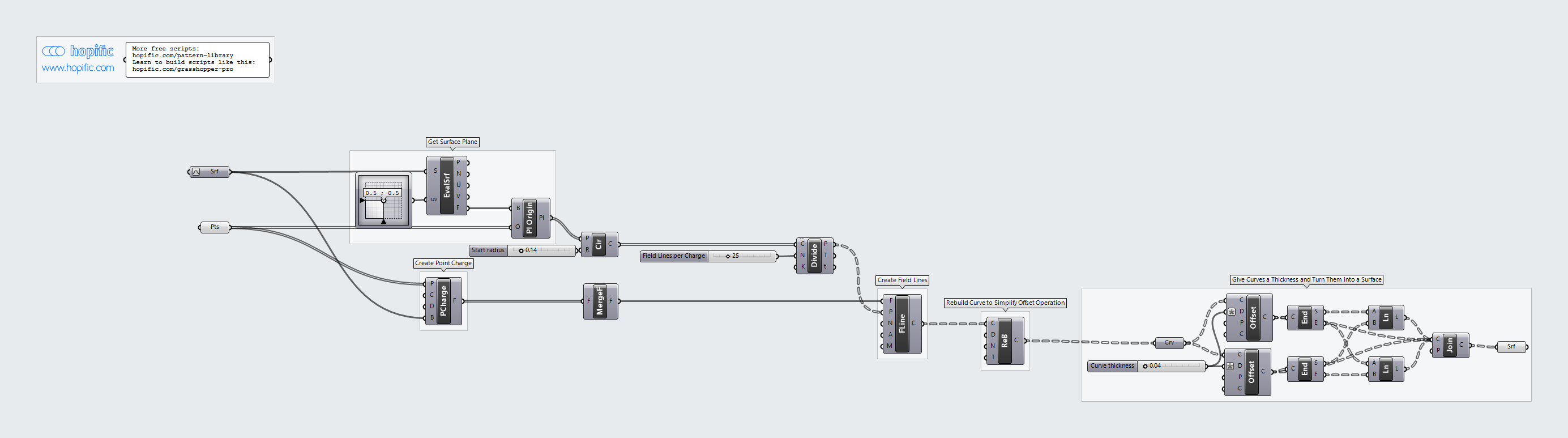
How the script builds the pattern, step by step.
| Step | How the script does it |
|---|---|
| 1. Turn the points into a field | Point Charge gives every point the same charge, limited to the box of your surface. Merge Fields combines them into one field. |
| 2. Place the start points around each charge | Evaluate Surface and an MD Slider get the plane of the surface, and Plane Origin moves that plane to each point. Circle draws a small circle there and Divide Curve splits it into the start points of the lines. |
| 3. Trace the field lines | Field Line follows the field from each start point and draws the line it flows along. |
| 4. Simplify the lines | Rebuild Curve rebuilds each line as a smooth curve with fewer control points, so the next step works reliably. |
| 5. Give the lines a thickness | Two Offset Curve components offset each line by half the thickness to each side. End Points and two Line components close the ends, and Join Curves joins everything into a closed outline, which is turned into a surface. |
Want to learn how to build scripts like this on your own? Check out the Grasshopper Pro course.