
Inputs
Reference in Rhino
Surface
The surface the pattern is built on. It must be a planar (flat) surface.
Curve
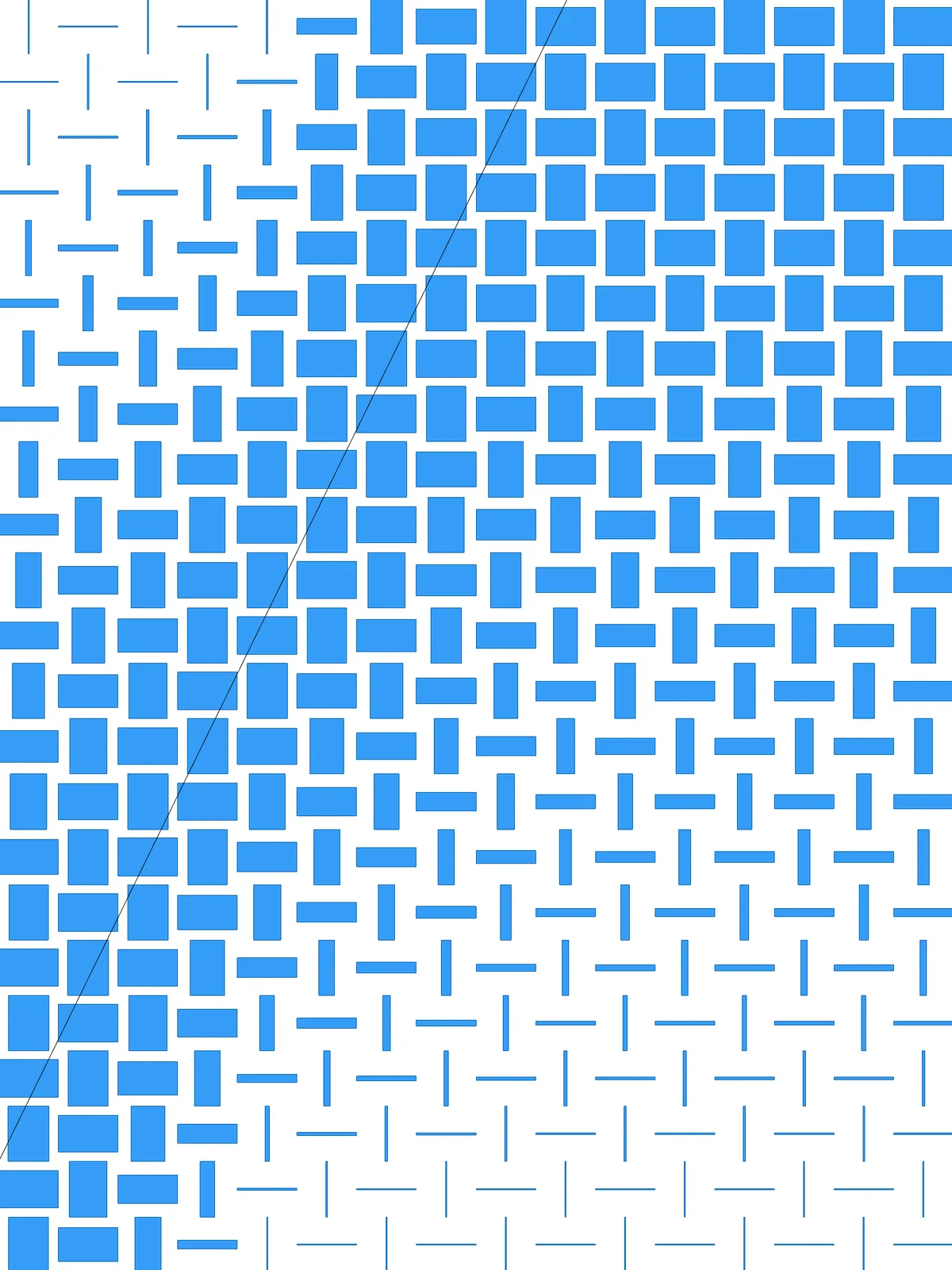
The attractor. Rectangles close to it stay large and form a dense weave; rectangles far from it shrink to thin marks.
Main Sliders
Also try: reshape the Graph Mapper. Its S-curve keeps the rectangles wide near the curve and thin far from it, with a quicker change in between. Straighten it into a line for an even fade from Max Width to Min Width.
Notes
- To reverse the effect, change the target domain of the first
Remap Numbers(the one fed byBounds) from 1 To 0 to 0 To 1. The rectangles then thin out near the curve and stay full away from it. - Keep the cells roughly square. Set Columns and Rows in proportion to your surface, so the upright and lying rectangles come out the same size and the weave reads clearly.
- The full range is always used. The cell nearest the curve always gets Max Width and the furthest cell Min Width, wherever you draw the curve.
Design Logic
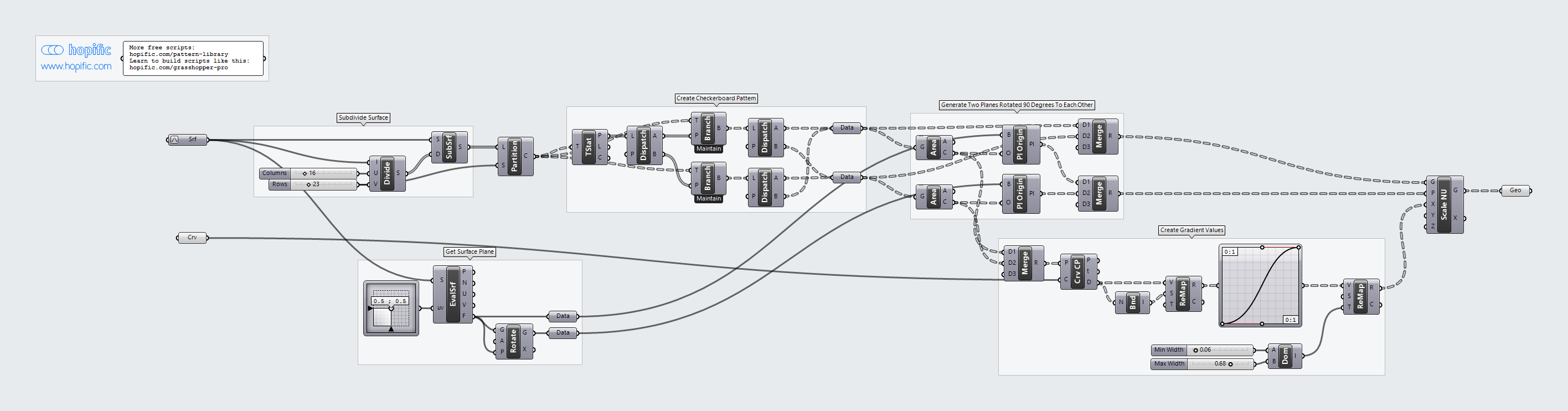
How the script builds the pattern, step by step.
| Step | How the script does it |
|---|---|
| 1. Split the surface into cells | Divide Domain² and Isotrim cut the surface into a grid of cells. |
| 2. Get two directions at right angles | Evaluate Surface gives the plane of the surface, and Rotate makes a copy turned by 90°. |
| 3. Sort the cells into a checkerboard | Partition List groups the cells into columns. Tree Statistics, Dispatch and Tree Branch split the columns into even and odd, and two more Dispatch components split each column’s cells the same way. Recombining them gives two sets, like the black and white squares of a chessboard. |
| 4. Give each set its own direction | Area finds the centre of every cell. Plane Origin moves the surface plane to the centres of one set and the turned plane to the centres of the other. |
| 5. Measure each cell’s distance to your curve | Curve Closest Point measures the distance from each centre to the curve. Bounds and Remap Numbers turn the distances into values from 1 at the nearest cell down to 0 at the furthest. |
| 6. Turn distance into width | A Graph Mapper shapes the gradient. Construct Domain makes a range from Min Width to Max Width, and a second Remap Numbers fits the values into it. |
| 7. Squeeze the cells into rectangles | Scale NU scales each cell along its plane’s X direction only. Because the two sets have planes at right angles, one set becomes upright rectangles and the other lying ones, which gives the basket weave. |
Want to learn how to build scripts like this on your own? Check out the Grasshopper Pro course.