
Inputs
Reference in Rhino
Surface
The surface the scales are built on. It must be a planar (flat) surface.
Curve - Grid Direction 1
The first guide curve of the grid. Copies of the second guide curve are spaced along it. Together, the two guide curves must form a grid that covers the whole surface.
Curve - Grid Direction 2
The second guide curve, crossing the first. Copies of the first guide curve are spaced along it.
Curve - Attractor
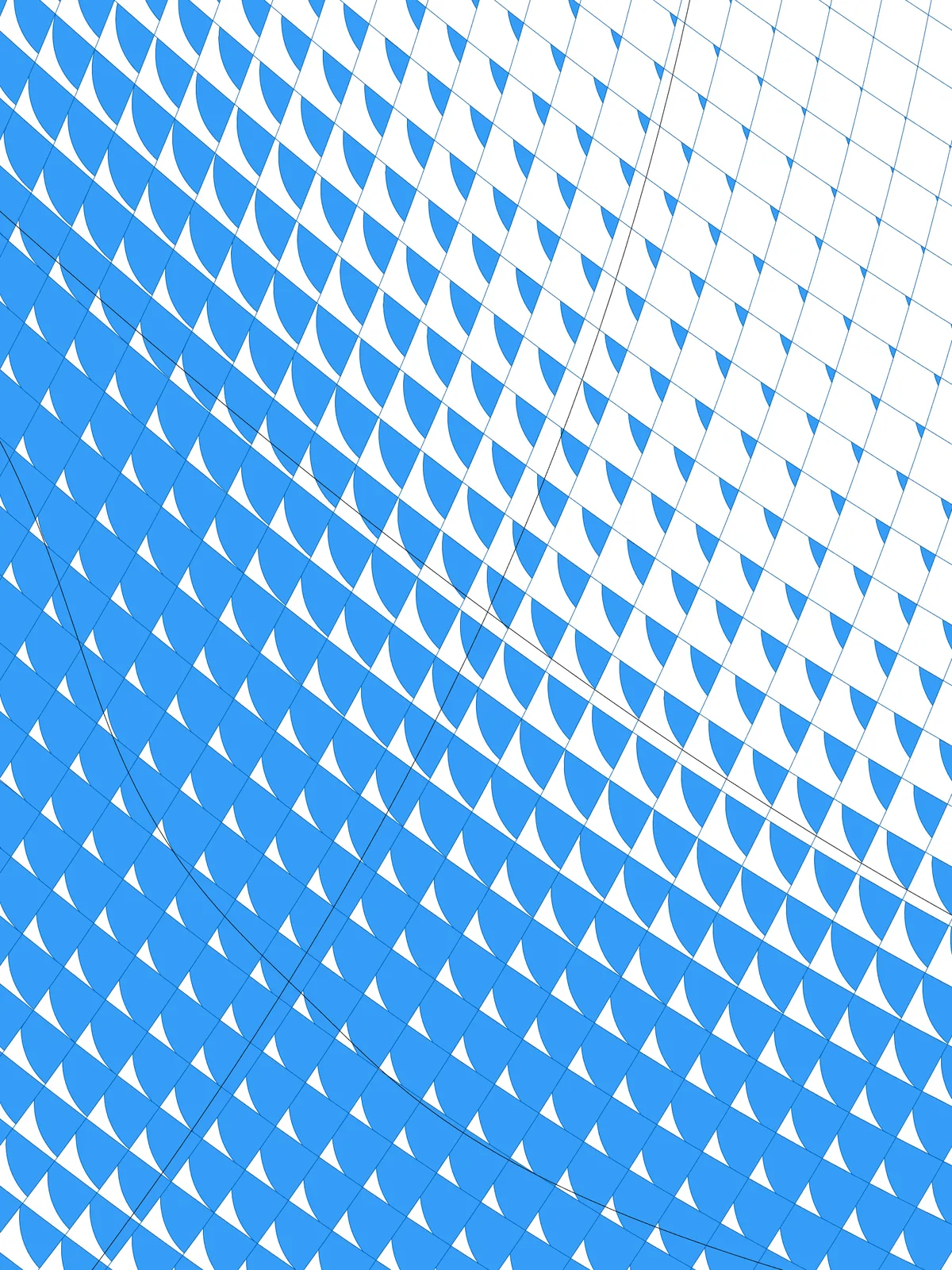
The attractor. The distance from each cell to this curve sets how far its circle is shifted, which changes the shape of the scale.
Main Sliders
Also try: reshape the Graph Mapper to change how quickly the scales change shape between the attractor and the rest of the panel.
Notes
- Let the guide curves cover the whole surface. The grid only exists where the copies of the two curves cross, so any part of the surface outside that grid stays empty.
- Wavy guide curves give wavy rows. The grid is made of copies of your two curves, so the rows of scales follow their shape.
- The curve directions set the direction of the shift. The circles move along a line from the start of Grid Direction 1 to the end of Grid Direction 2. Flip one of the curves in Rhino to make the scales face another way.
- The script also outputs the grid lines, trimmed to the surface, in the Crv Grid Outlines parameter.
Design Logic
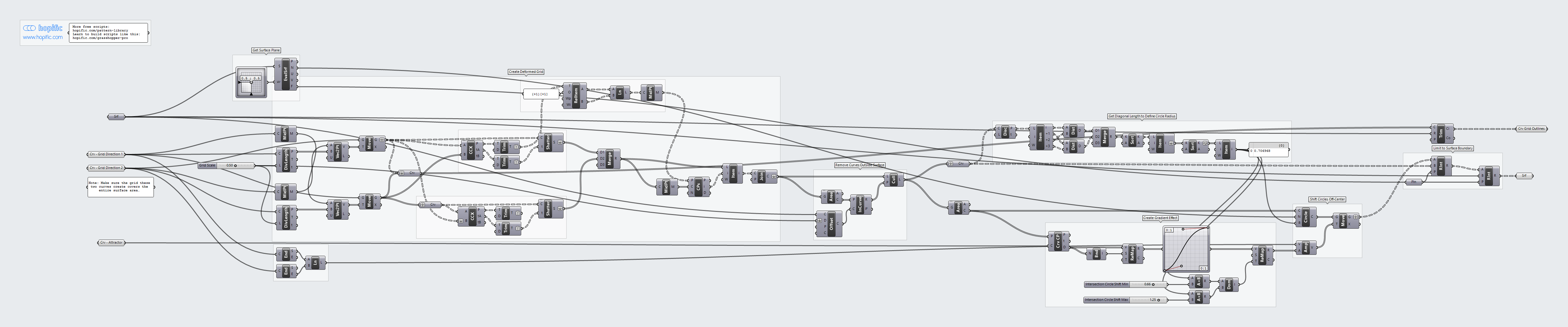
How the script builds the pattern, step by step.
| Step | How the script does it |
|---|---|
| 1. Build a grid from your two curves | Divide Length places points along each guide curve, Grid Scale apart. Curve Middle and Vector 2Pt make a vector from the middle of one curve to each point on the other, and Move places a copy of the curve there. |
| 2. Cut the grid into cells | Curve | Curve finds where the copies cross, and Trim Tree and Shatter cut the lines at those points. Relative Item, Line and Curve Middle join diagonally opposite crossings to find the centre of each cell. Closest Points, List Item and Join Curves collect the four pieces nearest to each centre into a closed cell. |
| 3. Remove cells outside the surface | Area finds the centre of each cell. Offset Curve offsets the outline of the surface by twice the Grid Scale, and Point In Curve and Cull Pattern keep only the cells whose centre lies inside it. |
| 4. Size the circles | Discontinuity, List Item and Distance measure both diagonals of each cell. Merge, Sort List and List Item take the shorter diagonal of each cell, then the longest of those. That one value is the radius of every circle. |
| 5. Measure each cell’s distance to the attractor | Curve Closest Point measures the distance from each cell centre. Bounds, Remap Numbers and a Graph Mapper turn it into a gradient. Two Multiplication components, Construct Domain and Remap Numbers map it from Intersection Circle Shift Min to Intersection Circle Shift Max, times the radius. |
| 6. Draw the circles and shift them off-centre | Evaluate Surface gives the surface normal and Circle CNR draws a circle at each cell centre. End Points and Line make a direction from the start of the first guide curve to the end of the second, and Amplitude and Move shift each circle along it by the value from step 5. |
| 7. Cut out the scales | A first Region Intersection intersects each shifted circle with its own cell; the circles and the cells are both grafted so every cell is handled on its own. A second one keeps only what falls inside the surface. Trim with Region also trims the grid lines to the surface. |
Want to learn how to build scripts like this on your own? Check out the Grasshopper Pro course.