
Inputs
Reference in Rhino
Surface
The surface the pattern is built on. It must be a planar (flat) surface. The grid starts from one corner and follows its edges, so a rectangle works best.
Set in Grasshopper
Image Sampler
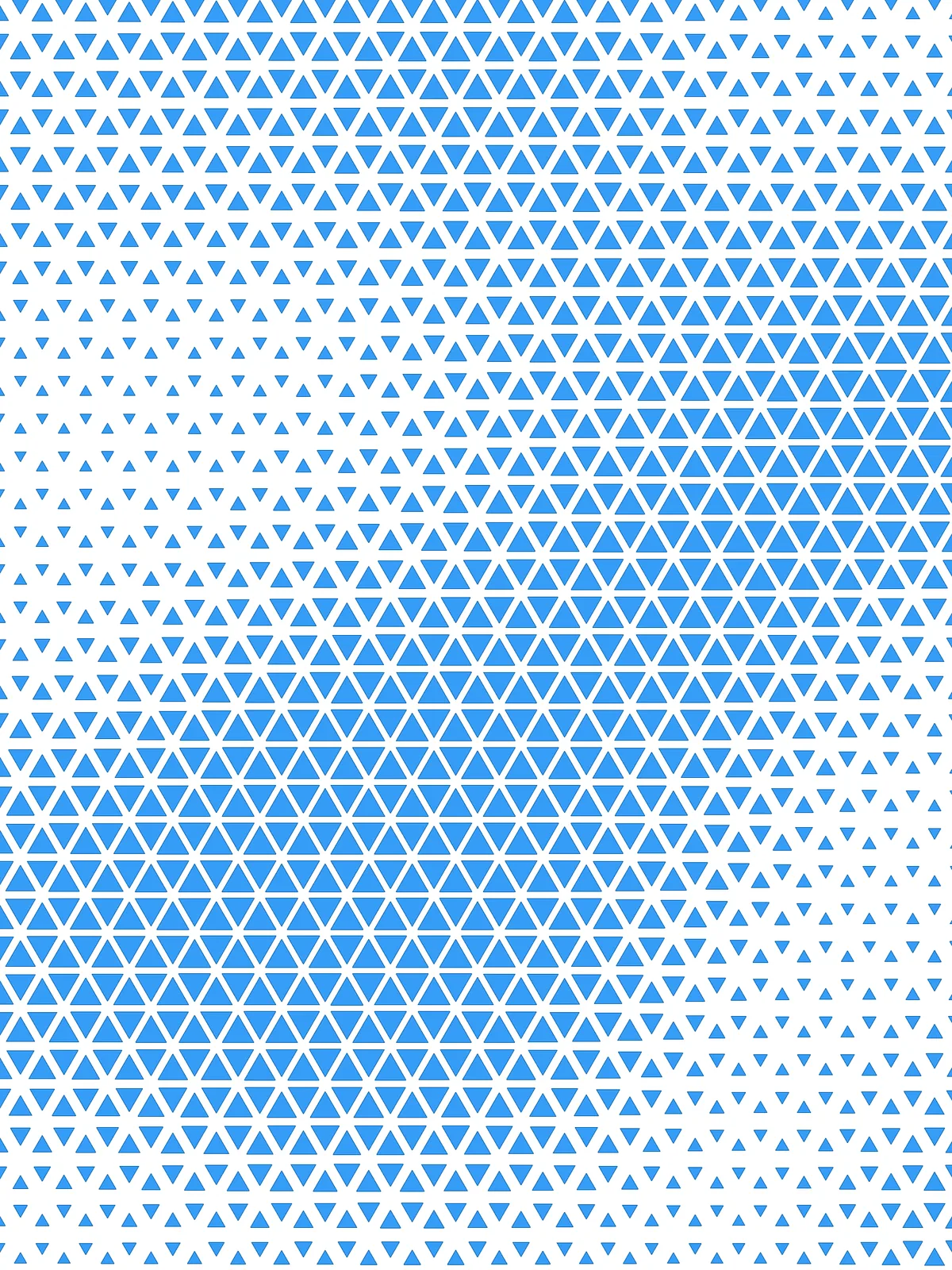
The image that drives the size of the triangles. Its brightness is read at the centre of each triangle.
Main Sliders
Also try: switch the channel of the Image Sampler from Value (brightness) to Red, Green or Blue, so one colour of your image drives the triangle sizes.
Notes
- Light areas give small triangles, dark areas large ones. To reverse it, set min offset distance higher than max offset distance.
- The image is stretched to fit the surface. Use an image with the same proportions as your surface, or it will look squashed.
- Use a picture with strong contrast. Each triangle reads the image at a single point, its centre, so fine detail smaller than a triangle is lost.
Design Logic
How the script builds the pattern, step by step.

| Step | How the script does it |
|---|---|
| 1. Find the surface’s corner and directions | Iso Curve takes the two edges that meet at the surface’s corner. Curve | Curve finds the corner where they meet, and Construct Plane builds a plane there, aligned with the two edges. |
| 2. Fill the surface with hexagons | Length measures both edges. An Expression turns Hexagon Scale into a hexagon size, and two more use the hexagon’s geometry (with sin(π/3)) to work out how many hexagons are needed in each direction. Hexagonal then draws a grid that covers the whole surface. |
| 3. Split each hexagon into six triangles | Discontinuity finds the six corners of each hexagon. Partition List groups them in pairs, and Shift List with a second Partition List gives the remaining pairs. Duplicate Data and Merge add the hexagon’s centre to each pair, and Nurbs Curve closes the three points into a triangle. |
| 4. Measure how far a triangle can shrink | List Item takes the first triangle. Explode and Curve Middle find the middle of one edge, Discontinuity and Average find the triangle’s centre, and Distance measures between them. Every triangle is the same size, so one measurement is enough. |
| 5. Read the image under each triangle | Discontinuity and Average find the centre of every triangle. Surface Closest Point gives its position on the surface, and Image Sampler reads the brightness of the image there, from 0 (black) to 1 (white). |
| 6. Turn brightness into a shrink distance | Two Expression components turn min offset distance and max offset distance into lengths, as a percentage of the distance from step 4. Construct Domain and Remap Numbers map each brightness value into that range. |
| 7. Shrink the triangles and trim them | Offset Curve moves each triangle’s outline inward by its distance. Region Intersection keeps only what falls inside the surface, and the result is turned into flat surfaces. |
Want to learn how to build scripts like this on your own? Check out the Grasshopper Pro course.