How to Turn Off the Grasshopper Preview
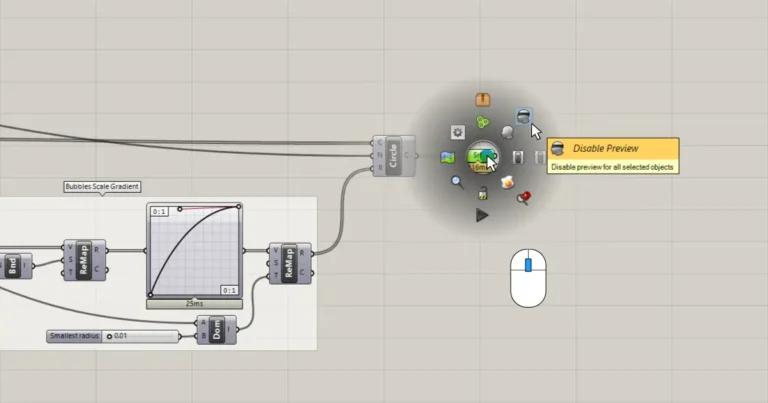
In Grasshopper we can control the display of individual objects in the right-click component menu, switch between displaying and turning off the preview of multiple

Founder, Architect & Authorized Rhino Trainer®
Thomas Jeremy Tait is the Founder and Lead Instructor at Hopific, where he provides strategic leadership for the platform’s computational design curriculum. With over a decade of hands-on experience as a Lead Design Architect and Project Manager at internationally recognized architecture practices such as Snøhetta and NADAAA, Thomas brings a strong technical background, production-driven habits, and forward-thinking creativity to all the tutorials and programs he oversees.
Thomas began his computational design career solving practical design challenges on high-profile projects, moving quickly into training his peers at Snøhetta. Over his career, he has contributed to award-winning buildings like the Beijing Public Library and the Budapest South Gate Masterplan, logging over 5,000 professional hours in Grasshopper and successfully training more than 300 architects. As a McNeel-endorsed Authorized Rhino Trainer® (ART), Thomas specializes in teaching a streamlined, design-first approach. He loves diving into complex data trees, optimizing algorithmic workflows, and solving technical design mysteries so architects can focus on creativity instead of wrestling with the software.

In Grasshopper we can control the display of individual objects in the right-click component menu, switch between displaying and turning off the preview of multiple


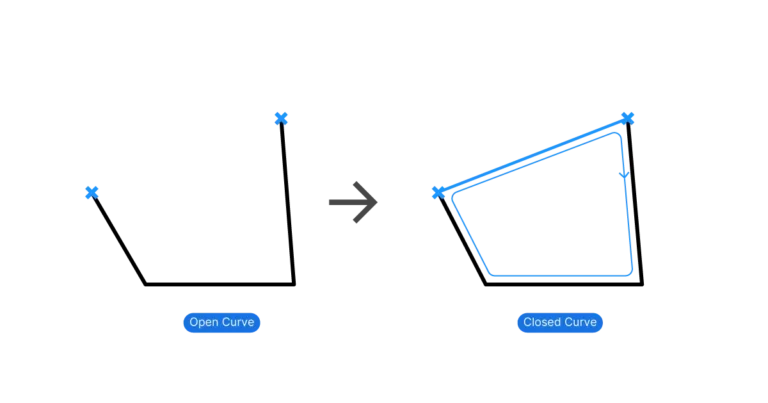
To close a curve in Grasshopper you need to add an additional curve segment that connects the endpoints and then join it with the original
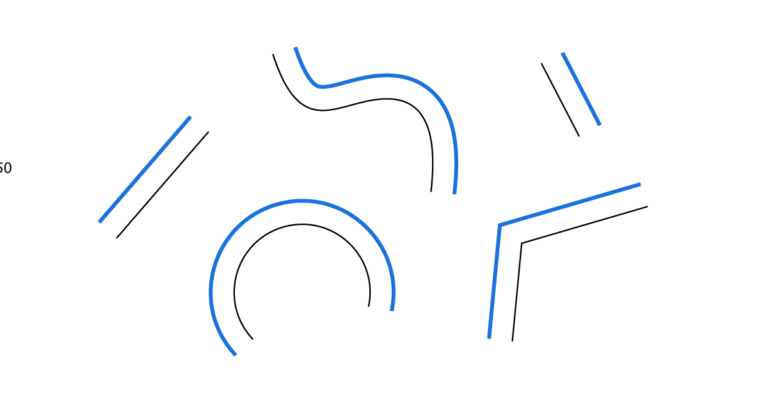
There are two components we can use to offset a curve in Grasshopper: Offset Curve is the same command we know from Rhino. Offset Curve
If you’re an architect using Rhino, you’ve seen what people build with Grasshopper, and you want to know how to get there yourself, and how