In Grasshopper we can turn the entire preview off or just the preview of selected objects.
Turning off the preview of individual Grasshopper components
To turn off the preview of individual components we right-click on the component and toggle the ‘Preview’ button.
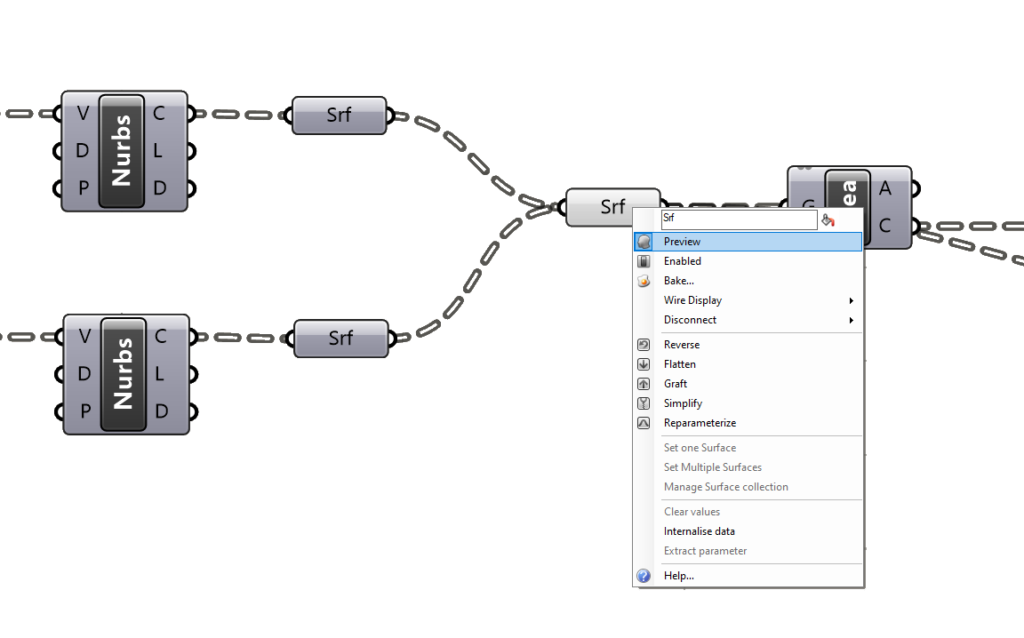
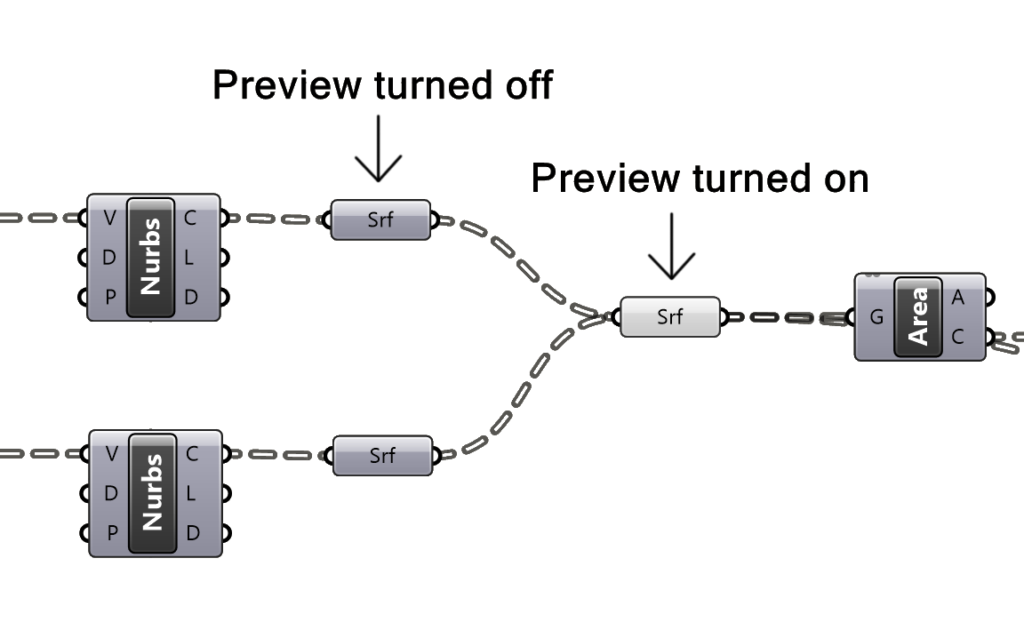
The component will change to a darker shade of gray to let us know that it has it’s preview turned off.
Shortcut
The keyboard shortcut to turn the preview of individual components on and off is CTRL + Q.
You can quickly toggle the preview status of a component by selecting it and hitting CTRL+Q. By hitting CTRL+Q once again, you can turn it back on.
Turning off the preview of multiple objects at once
The CTRL+Q shortcut also works if you select multiple objects. This way you can select and turn off the preview of multiple objects quickly.
Good to know: The shortcut will always invert the preview state of any selected objects. This means that if the preview of some of the selected components is already turned off, using this shortcut will turn off the preview of the visible components but turn the preview of those components back on.
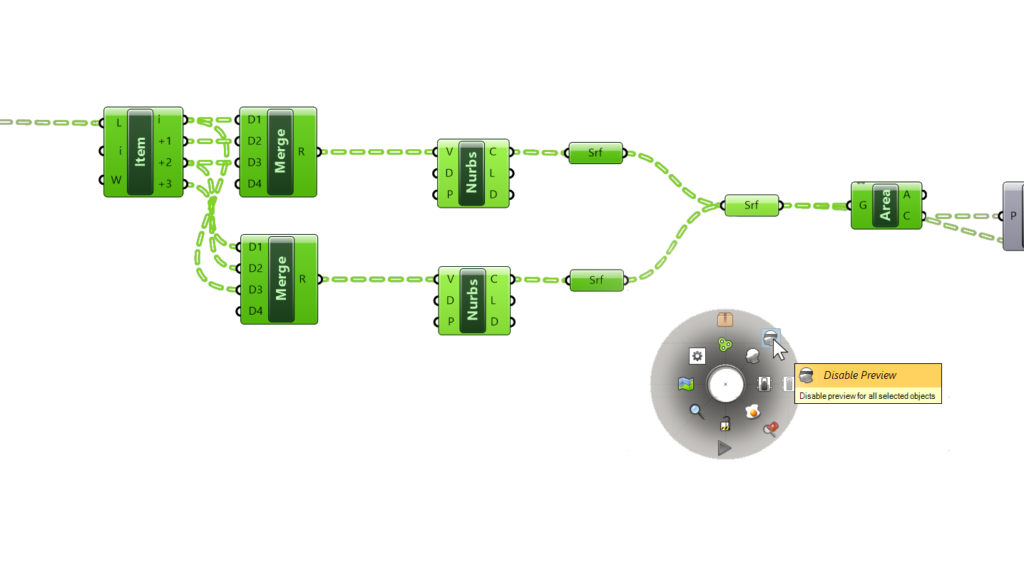
If you want to be sure to turn multiple components either on or off, regardless of their previous state, you can select the components in question and then middle-mouse click anywhere on the canvas to display the round menu. Then go to the top right corner and select the preview state you want. All the selected components will get their preview state adjusted accordingly.
Turning off the preview of the entire script
If you want to turn off the preview of the entire script, for example to adjust the existing geometry in Rhino, you can do so by selecting the following button on the top right corner of the canvas:
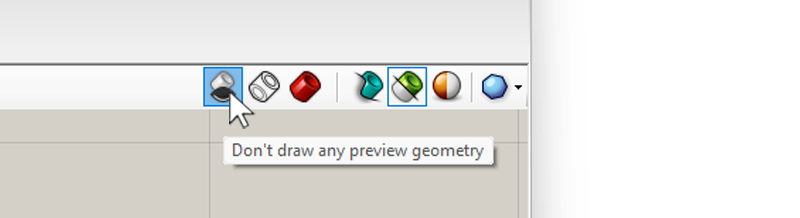
Regardless of their individual preview state the entire preview of the script will be turned off. To turn it back on, select the red shaded icon, which will turn the normal, shaded display back on.
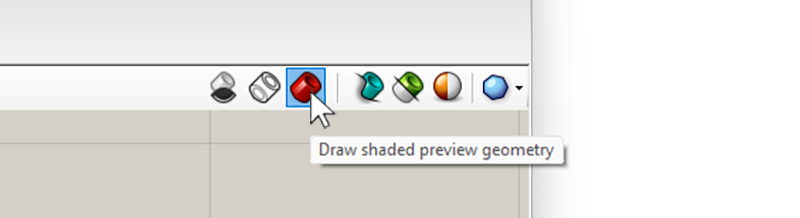
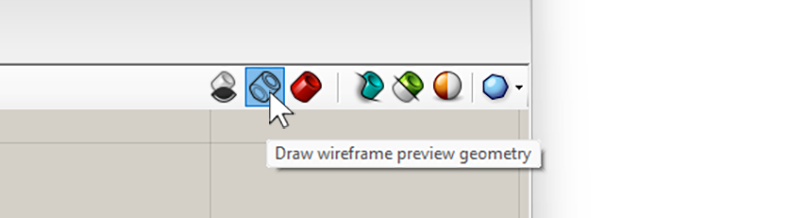
The preview mode in-between the two is the wireframe preview mode, it will display any Grasshopper geometry the same way a wireframe display in Rhino would: it will just show curves, points, and the edges of surfaces or meshes.
Isolating the preview to selected components
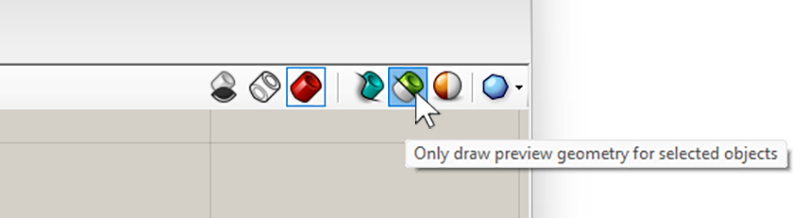
If you want to isolate the preview of individual components quickly, without turning off the preview of all the other components, you can go to the top right corner of the Grasshopper canvas and select the green icon. This isolate preview component will hide all the components and just highlight the contents of the component you select.
The component will be highlighted even if its preview state is off.
To change how geometry is displayed rather than hide it, use Custom Preview.