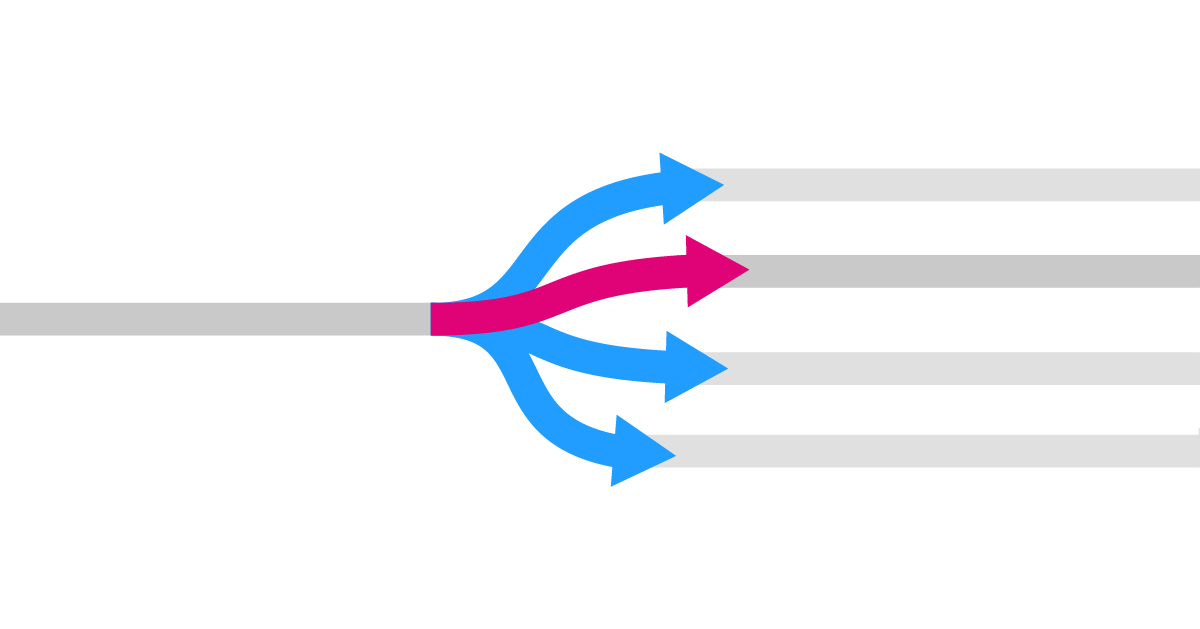
One key tool for managing data flows in Grasshopper is the Stream Gate component. It works like a railway switch that controls whether the input stream will continue to output A or output B.
Instead of manually disconnecting and connecting components to run different sections of your script, the Stream Gate automates this process.
Adding the Stream Gate Component
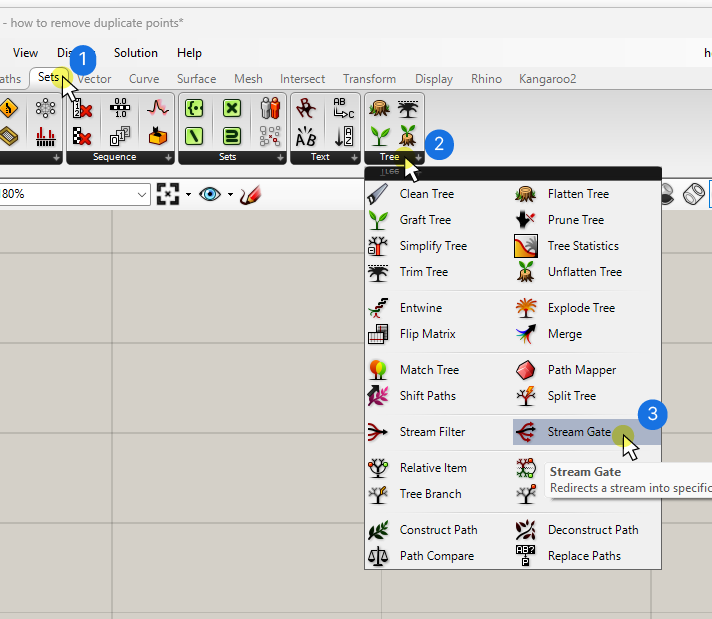
To begin, let’s add the Stream Gate component to our Grasshopper canvas. You can find it under the ‘Sets‘ component tab, grouped under ‘Tree‘.
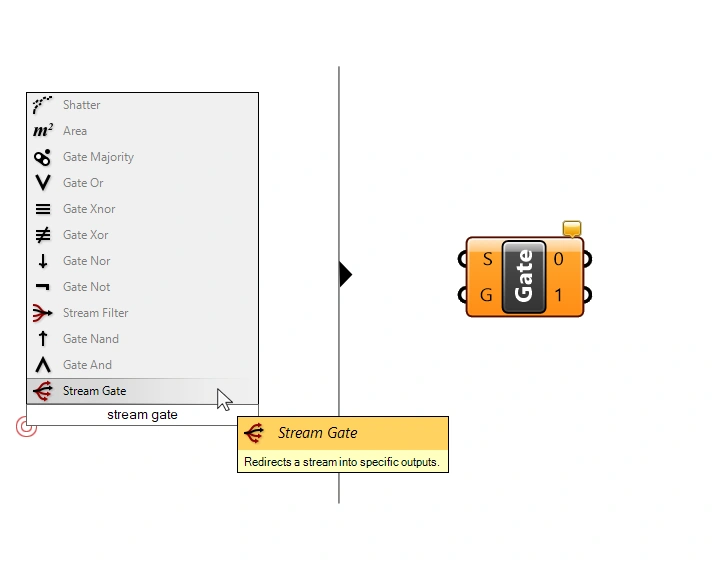
To add the component using the component search bar, double-click anywhere on the Grasshopper canvas and type ‘stream gate’, and click on the component.
Inputs and Outputs Explained
The Stream Gate component has two inputs:
- the Input Stream (S): This is the data stream that will be directed to one of the outputs. Think of it as our train.
- the Gate (G) index: This integer defines which output the Input Stream (S) will be directed to, acting as our railroad switch.
The outputs are simply numbered 0 and 1, they represent the two default ‘tracks’ the data can be guided to. What’s special about these outputs is that only one of them can carry data at any time. If the data is guided to output 0, output 1 is empty, and vice-versa.
Basic Stream Gate Setup with Two Options
By default, the Stream Gate component comes with two outputs: 0 and 1. Here’s how you might set it up:
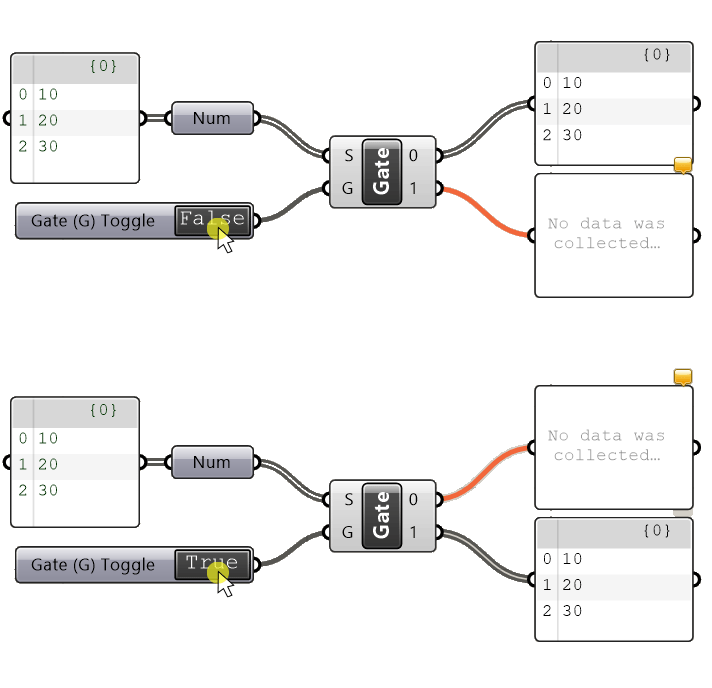
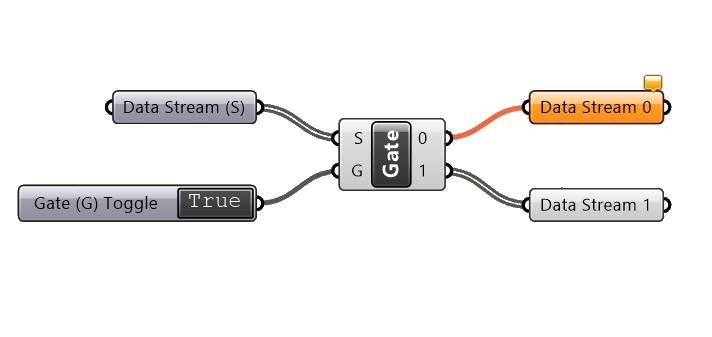
Connect your data stream to the Input Stream (S) and use a Boolean Toggle for the Gate (G) input. Since Boolean Values (True and False) correspond to 0 and 1, this toggle provides a straightforward way to control which output the data stream should be directed to. If the toggle is set to ‘False‘ (0), the input stream will be output to the output 0 and, if set to ‘True‘ (1) it goes to output 1.
In the image above, you can see the inactive output and its subsequent components are orange, indicating no data is flowing through them.
But we are not limited to just two output stream options!
Expanding to Multiple Output Options
To add more output options, zoom in to the Stream Gate component until you see small plus and minus signs. (If this is the first time zooming up close to the component, you’ll see a popup message explaining how you can add or remove outputs.)
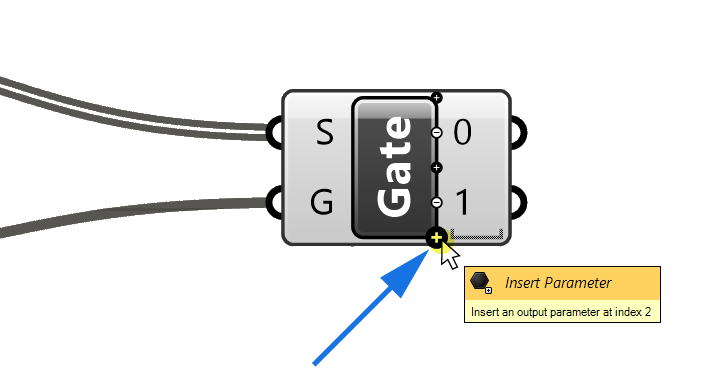
Click on the plus icon to add as many additional stream outputs as needed.
Since there now are more than two output options, we can no longer use the Boolean Toggle to choose the output. Instead, use a Number Slider, with a range matching our output options. For example, if you have four outputs, set the slider range from 0 to 3.
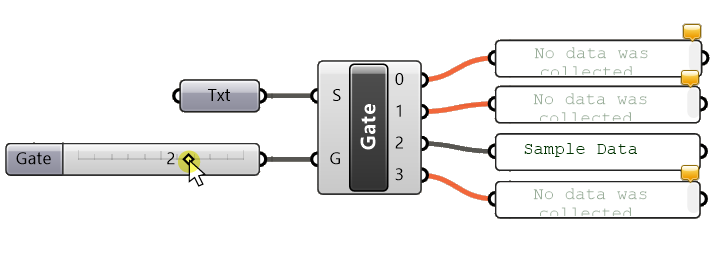
In the example shown above, the Gate input is the number ‘2’, and the Stream (S) input is directed to the ‘2‘ output. All other outputs remain empty.
For detailed instructions on configuring the Number Slider to a specific range, check out my post about the Number Slider.
Happy designing!