
Component Display Options in Grasshopper – The Complete Guide
How to Switch Between Icon and Text Display Let’s start with the component names themselves. Grasshopper offers two ways to display the command the component


How to Switch Between Icon and Text Display Let’s start with the component names themselves. Grasshopper offers two ways to display the command the component
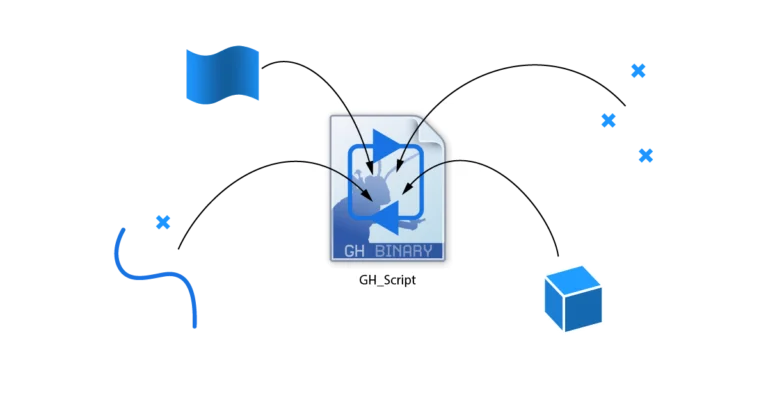
All Grasshopper components have inputs, and they can get data in one of two ways: Internalizing data allows you to save the current input data
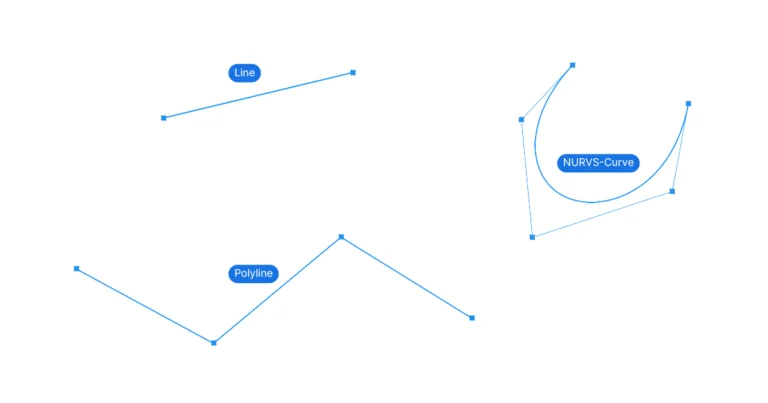
Use Line to connect two points, Polyline for straight segments through many points, and Interpolate or NURBS Curve for a smooth curve. If you are
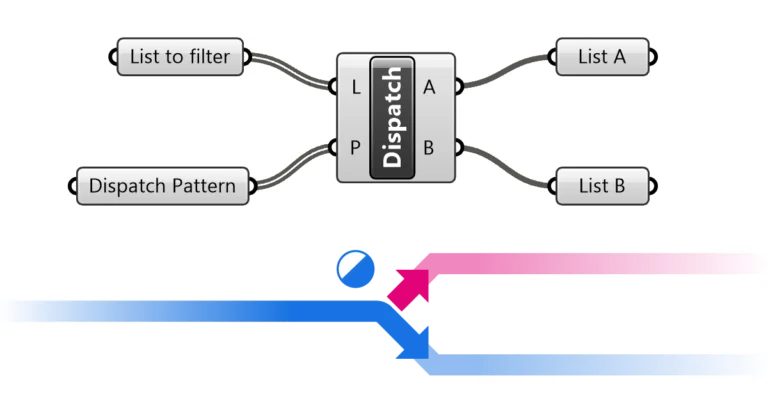
The Dispatch component splits one list into two based on a True/False pattern: items matching True go to output A, the rest to B. Where
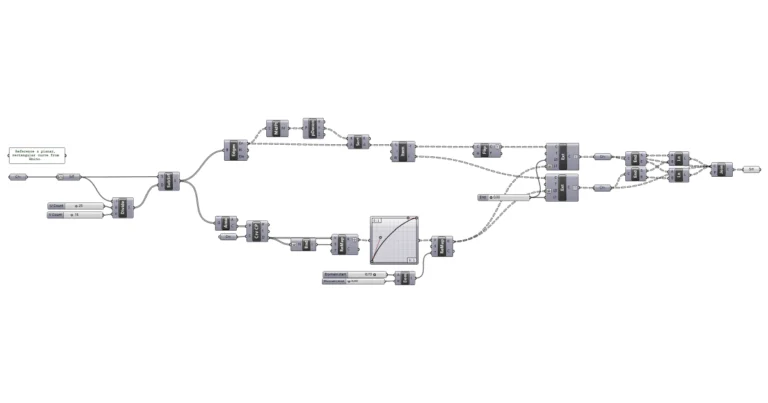
Grasshopper offers two ways to export an image of your script: For a screenshot of the Rhino viewport, use ViewCapture. 1. Exporting a Screenshot of
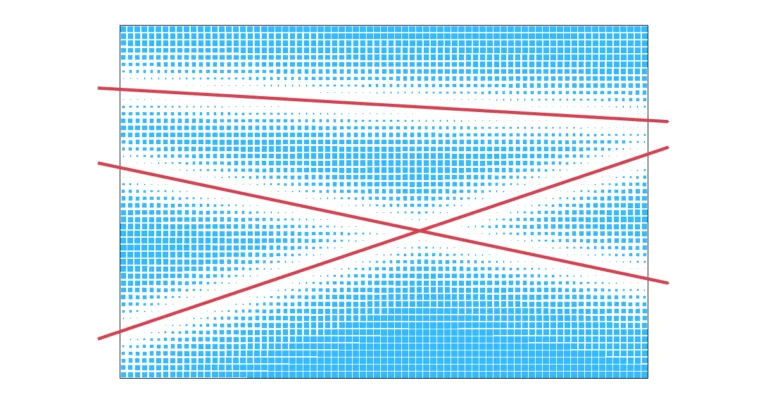
A multiple curve attractor transforms a grid of objects based on their distance to a set of curves: the closer to any of the curves,
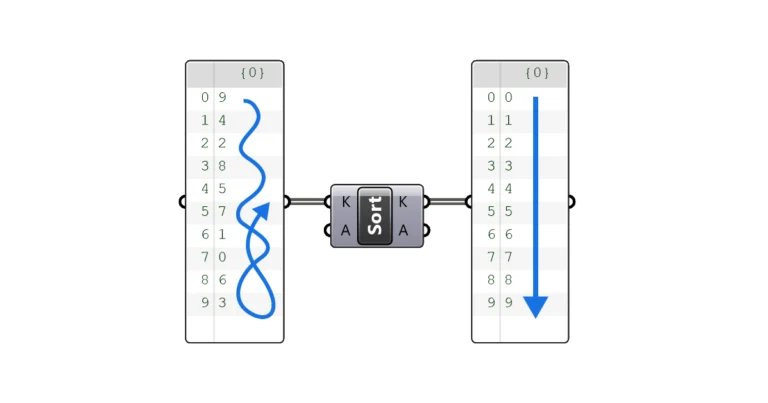
How the Sort List Component Works The Sort List component takes any list of numbers and sorts it to go from the smallest to the
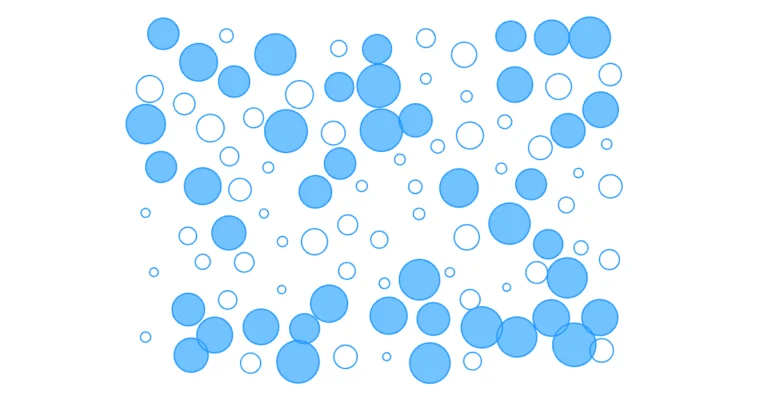
The Cull Pattern component allows us to remove items from a list using a repeating True or False pattern. You can enter a pattern manually
I’ve collected the most useful Grasshopper keyboard shortcuts out there and organized them by category for easier reference: Wire Connections Shortcuts Connection wires are Grasshopper’s