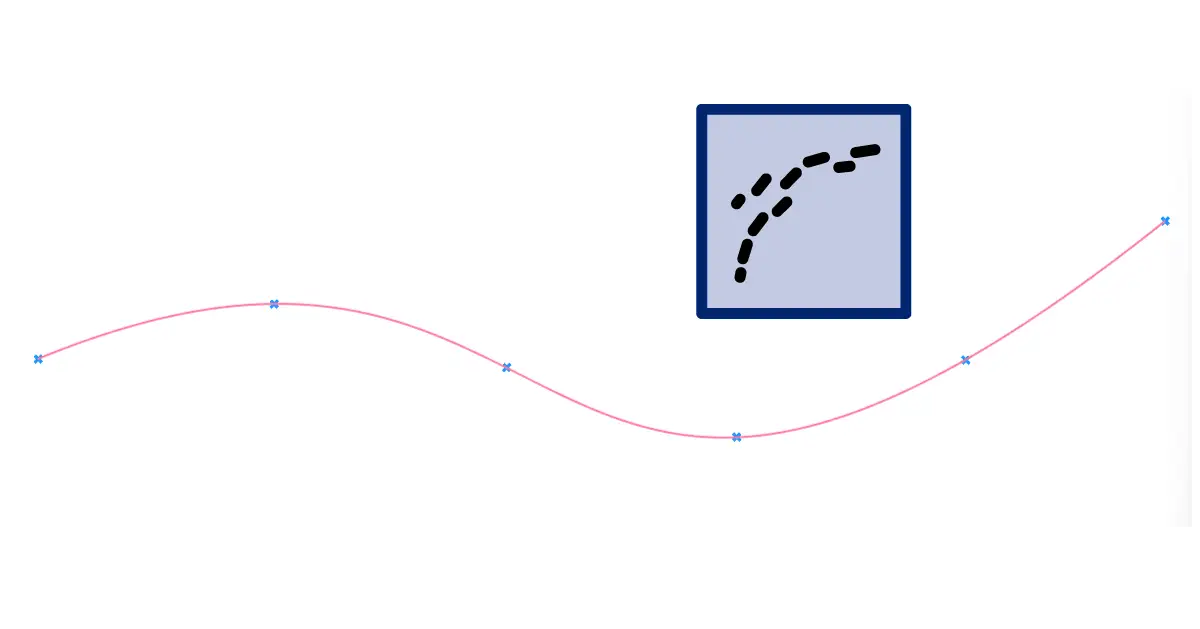
In Rhino, splitting a curve takes one command. In Grasshopper you won’t find a ‘Split’ component at all, and that trips up almost everyone the first time. The component you’re looking for is called Shatter.
In this tutorial I’ll show you how to split a curve in Grasshopper at points, into equal segments, at a specific length and with other geometry, and how to pick the pieces you want to keep afterwards.
The Shatter Component: Grasshopper’s ‘Split’
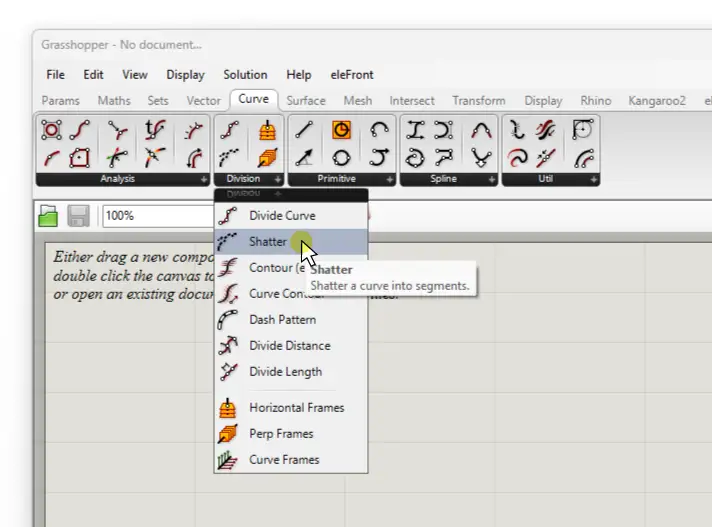
You’ll find Shatter in the Curve tab, in the Division group. Or double-click on an empty spot on the canvas and type ‘Shatter‘.
It has two inputs and one output:
- Curve (C): the curve you want to split.
- Parameters (t): where to split it.
- Segments (S): the resulting curve pieces.
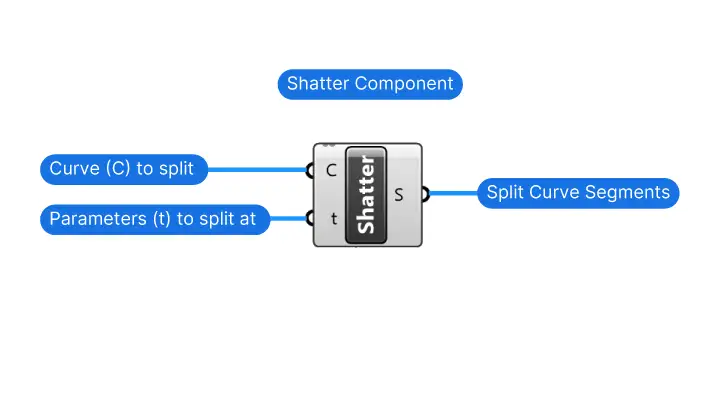
Here’s the key thing to understand: Shatter doesn’t take points. It takes curve parameters, numbers that describe a location along the curve. (If curve parameters are new to you, I explain them in How to Extract Points from a Curve.) Every method in this tutorial is really just a different way of getting those parameters.
How to Split a Curve at Points
This is the most basic way of getting the parameters is to take a set of points and then use the Curve Closest Point (Crv CP) component to find the curve parameters at that point. When the points are on the curve, it works just the same, in that case the closest point matches the input point.
- Add a Curve Closest Point component (Curve tab, Analysis group, or type ‘CrvCP’). Connect your points to the Point (P) input and your curve to the Curve (C) input.
- For every point, Curve Closest Point finds the nearest location on the curve and returns its Parameter (t).
- Connect that t output to the Parameters (t) input of Shatter, and the curve to its Curve (C) input. That’s it: the curve is split at every point.
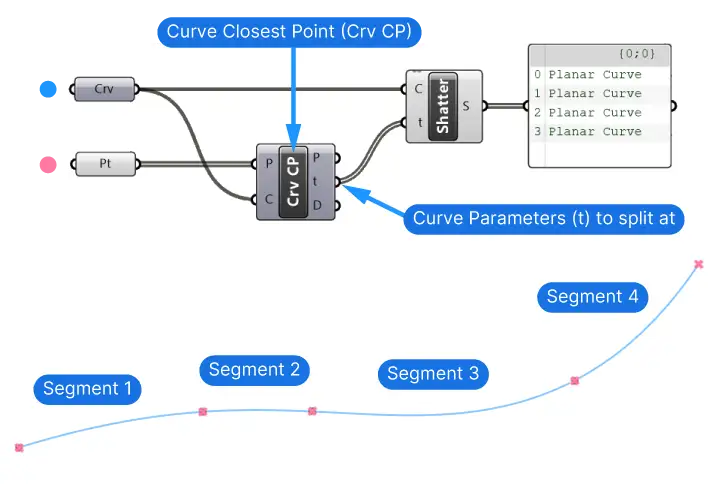
Since all the segments sit exactly where the original curve was, you won’t see a difference in the viewport. Hover over the Segments (S) output, or connect a Panel, to check how many pieces you got. Even better, give each segment its own colour with a Custom Preview.
Curve Closest Point projects each point onto the curve, so the split happens at the closest location. Your points don’t have to sit exactly on the curve. That’s handy, but double-check the result if a point is far from the curve.
Splitting a curve is rarely the goal. It’s one step in a bigger script, like dividing a façade edge into bays. Knowing which step comes next is what Grasshopper Pro teaches, with one method: Design → Logic → Grasshopper.
How to Split a Curve into Equal Segments
If you want equal pieces, you don’t need any points. The Divide Curve component (Curve tab, Division group) gives you the parameters directly: next to the division points, it also outputs their Parameters (t).
Connect that t output to Shatter, and the curve is split into as many equal-length segments as you set in the Count (N) input. More on the component in How to Divide a Curve in Grasshopper.
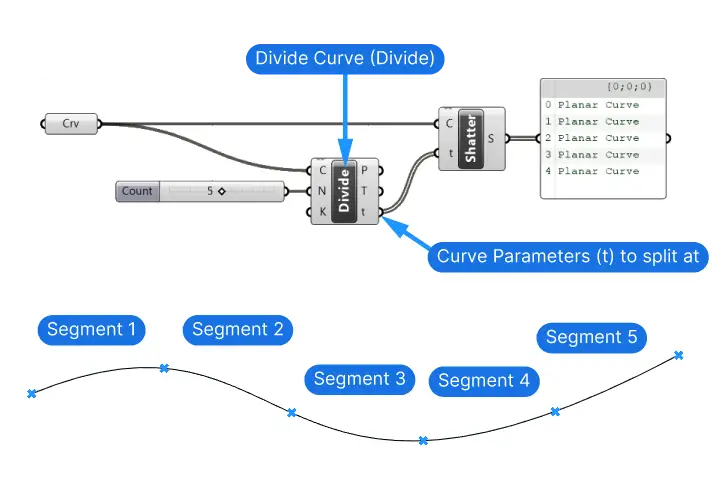
Need segments of a fixed length instead, say 1.2 m each? Use Divide Length the same way. Keep in mind that the last segment will be shorter if the curve length isn’t an exact multiple of your segment length.
How to Split a Curve at a Specific Length
Sometimes you want a single cut at an exact distance along the curve, say 1.2 m from the start. For that, use Evaluate Length (Curve tab, Analysis group):
- Curve (C) the curve to evaluate.
- Length (L): length to split at.
- Normalized (N): Set to to False to use the actual length in your model units! Default is ‘True’.
Its Parameter (t) output goes straight into Shatter.
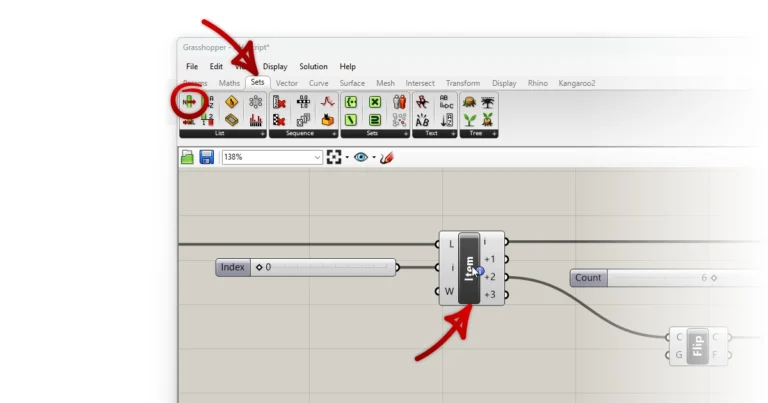
To pick the item, use the List Item (Item) component and get the first item in the list (which is index 0).
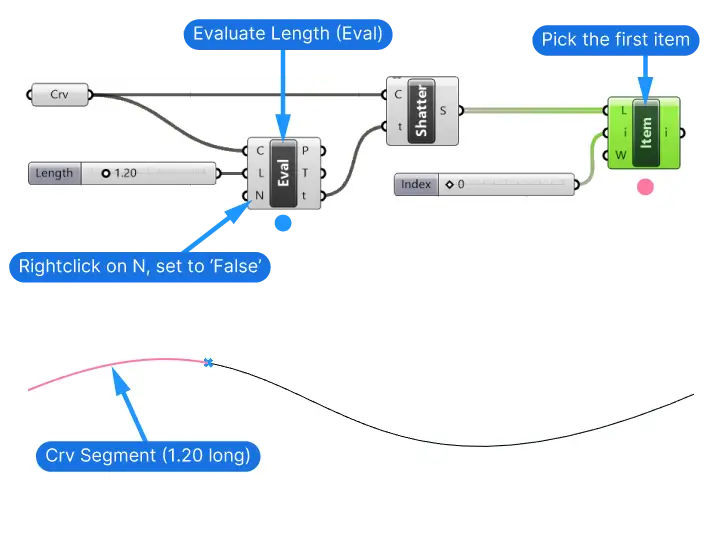
Which end counts as ‘the start’ depends on the curve’s direction. If the split ends up at the wrong end, flip the curve first. See Controlling Curve Direction in Grasshopper.
How to Split a Curve with Another Curve or a Surface
To split a curve where it crosses another curve, the Curve | Curve intersection component gives you the parameters directly. Once for the parameters of input curve a and once for curve b (tA and tB respectively).
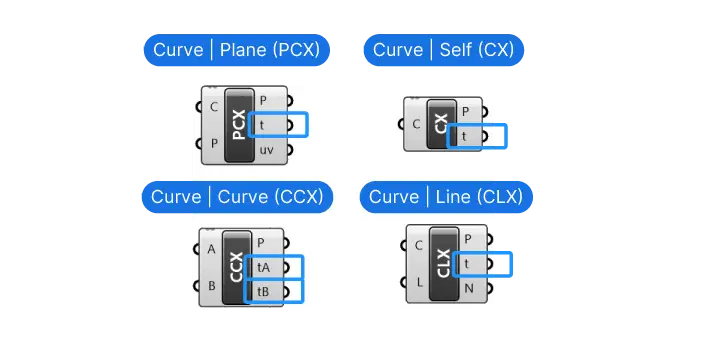
There are two types of Intersection components: those that output the curve parameter t directly, and those that only output the actual intersection point.
If you only get the intersection point, use the base method: use Curve Closest Point, then Shatter.
That’s the general recipe for splitting with any geometry: find the points, turn them into parameters, shatter.
How to Split a Polyline at Its Corners
If you want to break a polyline or polycurve into its straight segments, you don’t need Shatter at all. The Explode component (Curve tab, Util group) splits it at every corner and also gives you the corner points through its Vertices (V) output.
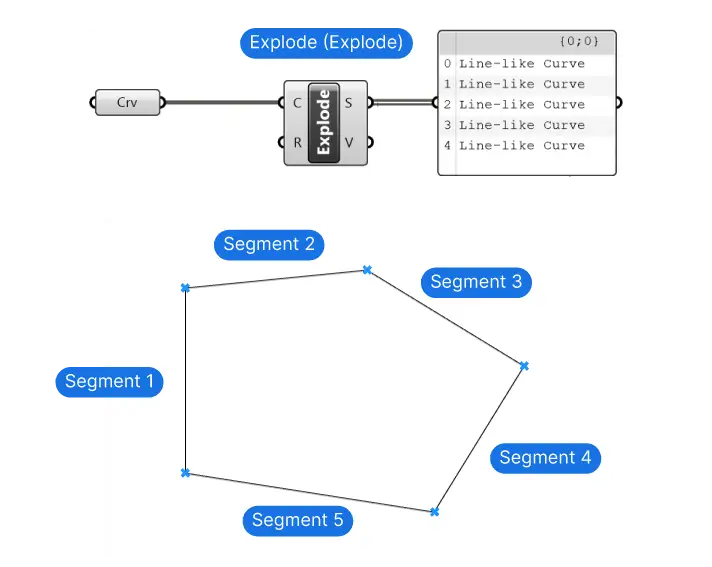
Splitting Several Curves at Once
Everything above works for many curves at the same time, as long as each curve gets its own parameters. The parameters for each curve need to sit in their own data branch, matching the branch of that curve.
If you split several curves and get unexpected results, check the data structure with a Panel first. Understanding Data Tree Matching explains how Grasshopper pairs up the inputs.
How to Keep Only the Segments You Need
After splitting, you usually want to keep some of the pieces and remove the rest. Grasshopper doesn’t let you click on segments to delete them like in Rhino. Instead, you select them from the list:
- A specific segment, like the first or last one: List Item with its index.
- Every other segment, for example for alternating panels: Cull Pattern with a True/False pattern.
- Two groups you want to treat differently: Dispatch.
Concluding Thoughts
The one thing to remember: in Grasshopper, ‘Split’ is called Shatter, and splitting a curve always comes down to finding the right curve parameters. Points, equal divisions, exact lengths or intersections: once you have the parameters, Shatter does the rest.
Happy designing!